Is the Bangbet app not working in Uganda? Learn how to fix opening, login, storage, network, and cache problems, update safely, or use the mobile browser.
If the Bangbet app is not working in Uganda, the cause may be an outdated app version, insufficient phone storage, corrupted cached data, or an unstable internet connection. The app may fail to open, close unexpectedly, or leave the login screen loading without completing.
Start with the simple checks below before uninstalling the application. This guide covers general Bangbet app faults.
Identify What Is Not Working
First, confirm whether the problem affects the entire application or one section.
| Problem | Possible cause | First action |
| App does not open | Outdated version or limited memory | Restart the phone |
| App closes immediately | Storage or cached-data problem | Close other apps |
| Login screen remains blank | Weak connection or loading fault | Change network |
| Pages load slowly | Unstable mobile data or Wi-Fi | Test another connection |
| Update cannot install | Insufficient storage or wrong source | Use the official route |
| Login details are rejected | Incorrect details or expired session | Check the registered number |
Do not repeatedly press login, payment, or betting buttons while the application is frozen. If an action may already have been submitted, check the account record before trying again.
Restart the App and Phone
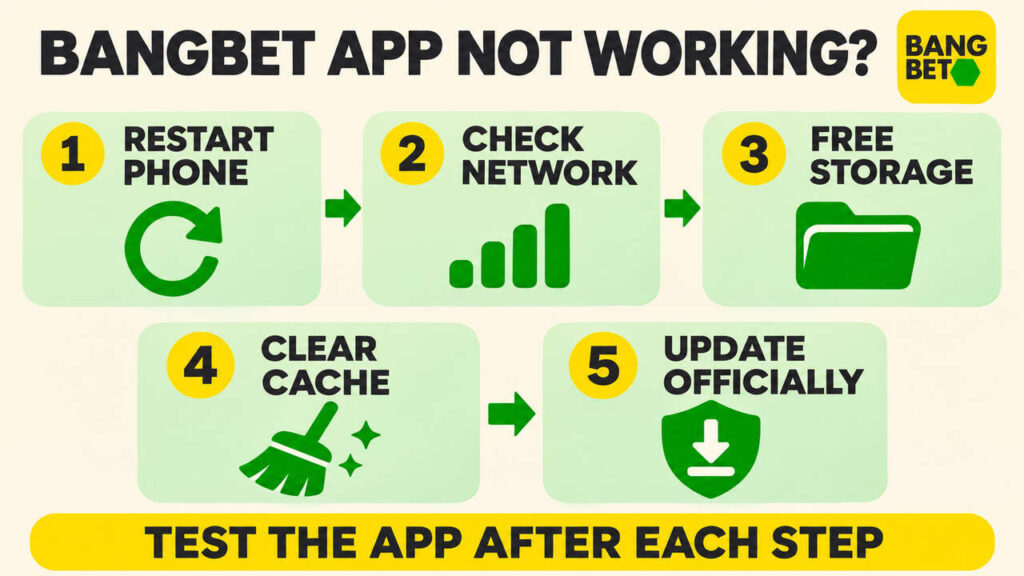
Close the Bangbet app completely and reopen it once. If it still fails, restart the phone. Restarting releases memory and may stop a background process interfering with the application.
Google’s official Android app troubleshooting guidance recommends restarting the device, checking for Android updates, force-stopping an unresponsive app, and clearing its cache.
You can normally force-stop an application by opening Settings, selecting Apps, choosing Bangbet, and tapping Force stop. Menu names may differ across Samsung, Tecno, Infinix, Itel, and other Android phones.
Fix a Bangbet Login Screen That Is Not Loading
A blank login screen does not automatically mean the account has been blocked. The application may be struggling to connect to Bangbet’s servers.
Switch once between mobile data and trusted Wi-Fi. If the login screen opens on one connection but not the other, the original network may be unstable. You can also temporarily disable Data Saver if it is preventing interactive content from loading.
Confirm that the phone’s date and time are set to automatic. An incorrect device clock can interfere with secure connections.
If the form loads but rejects your details, check the registered Ugandan mobile number and password. Use the existing Bangbet login and app-download guide for password and account-access guidance rather than creating a second account.
Update the Bangbet App Through the Official Route
An outdated version may stop opening correctly after security or platform changes. Do not download a Bangbet APK from an unofficial website, Telegram channel, social-media advertisement, or forwarded message.
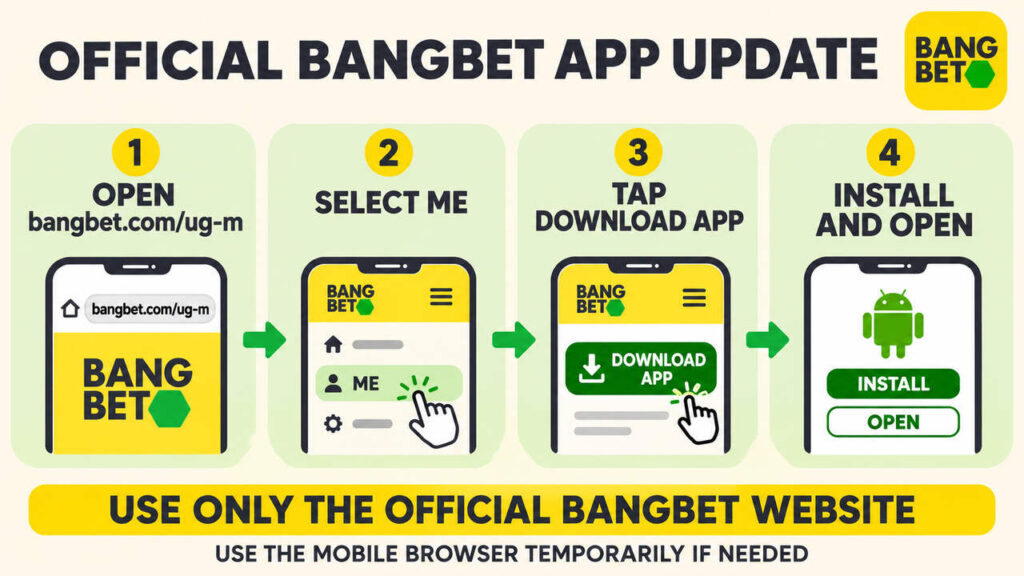
Follow these official download and update steps:
- Open an updated browser such as Chrome on your Android phone.
- Enter the official Bangbet Uganda mobile website address directly.
- Select Me from the navigation menu.
- Choose Download App.
- Allow the official installation file to download.
- Open the downloaded file from the browser or phone’s Downloads folder.
- If Android requests permission, allow that browser to install the file.
- Select Install and wait for the process to finish.
- Open Bangbet and log in using your registered mobile number and password.
Android security settings differ by phone. If you temporarily allowed installation from the browser, return to the phone’s security settings afterwards and switch off that permission.
The Bangbet Android installation guide provides the approved download route. Updating through the official website helps avoid modified applications designed to steal passwords, account details, or Mobile Money information.
Check Available Phone Storage
Insufficient storage can stop an application from opening or installing an update. Open the phone’s Storage settings and check the available space.
Remove unnecessary downloads, duplicate videos, or applications you no longer use. Back up important photographs and documents before deleting them. After freeing space, restart the phone and test Bangbet again.
Close other applications running in the background, especially video, social-media, or gaming apps. Older phones may struggle when several memory-intensive applications are open simultaneously.
Clear the Bangbet App Cache
Temporary files can become damaged and prevent the app from loading properly. To clear them:
- Open Settings on the phone.
- Select Apps or Manage Apps.
- Choose Bangbet.
- Select Storage and cache.
- Tap Clear cache.
- Reopen the application.
Clear the cache before selecting Clear data. Clearing all app data may remove locally saved settings and sign you out. It does not delete the Bangbet account, but you should confirm that you know your password before proceeding.
Test the Internet Connection
Open another trusted website to confirm that the phone has working internet access. A visible network signal does not always mean the connection is stable.
Switch between MTN or Airtel mobile data and trusted Wi-Fi. Avoid accessing Bangbet or Mobile Money services through unsecured public Wi-Fi.
Bangbet also guides situations where the platform is slow or keeps freezing.
Do not use a VPN to bypass account or location checks. A VPN can increase loading time and may trigger additional security verification.
Use the Mobile Browser Temporarily
If the installed application still does not work, open the official Bangbet Uganda mobile website in Chrome or another updated browser.
The browser is a practical temporary alternative while an app-specific fault is investigated. Type the website address directly or use a trusted bookmark. Avoid links sent by unknown contacts.
If the website works while the application fails, the problem is probably limited to the installed app. If neither works on mobile data nor Wi-Fi, contact Bangbet support.
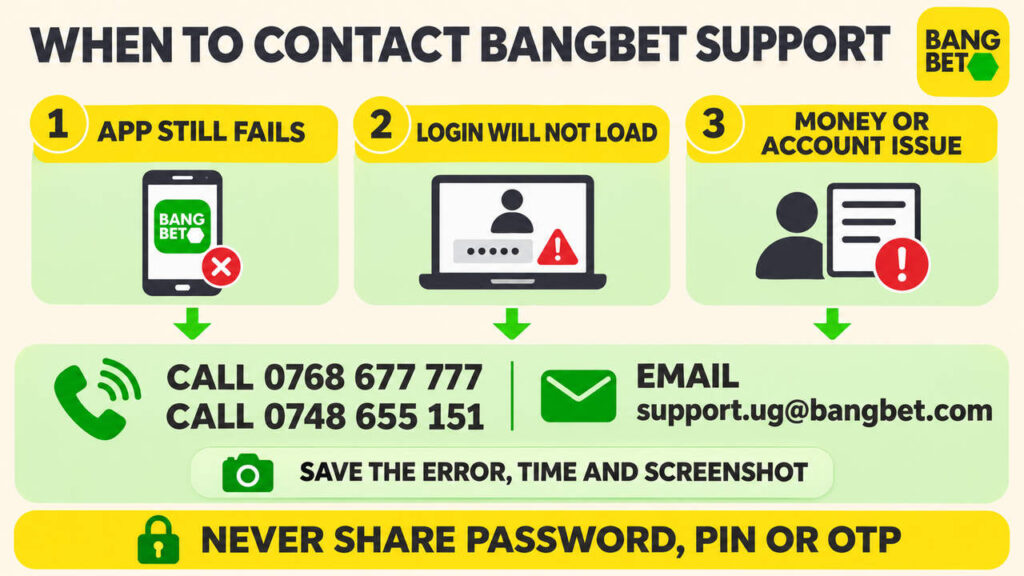
When to Contact Bangbet Support
Seek assistance when the app continues crashing after restarting, updating, freeing storage, and clearing the cache. Contact support immediately if the problem involves an unfamiliar account change, payment, balance, or unresolved bet.
Use the Bangbet Help Centre or the support and complaints guide.
Official contacts include:
- MTN: 0768 677 777
- Airtel: 0748 655 151
- Email: support.ug@bangbet.com
Provide your phone model, Android version, time of the problem, connection used, and exact error message. Never provide your password, Mobile Money PIN, or OTP.
Frequently Asked Questions
Why does the Bangbet app keep closing?
Limited memory, insufficient storage, damaged cached files, or an outdated version may cause the app to close. Restart the phone, free up storage, clear the cache, and update through Bangbet’s official website.
Can I use Bangbet without the app?
Yes. The official mobile website can be used temporarily through an updated browser.
Will clearing the cache delete my account?
No. Clearing the cache removes temporary files. Clearing all app data may sign you out, but it does not delete the account.
Should I download a Bangbet update sent through WhatsApp?
No. Use only the download option on the official Bangbet Uganda website.
Access Bangbet Through the Official Website
Adults aged 25 and above can access Bangbet through the official app or mobile browser. Set affordable spending and time limits, protect money needed for essentials, and never chase losses. Read Bangbet’s responsible-gambling guide if gambling becomes difficult to control.
Verdict
When the Bangbet app is not working in Uganda, restart the phone, test the connection, free storage, clear the cache, and install the latest version through Bangbet Uganda → Me → Download App. Use the official mobile browser temporarily and contact Bangbet support if the fault continues or involves account security or money.